
Configuring Proxifier: A Detailed Guide for Emulators
In the realm of networking and software development, the importance of proxy servers cannot be overstated. They play a crucial role in ensuring secure and efficient data traffic management. Whether you’re a mobile developer needing to test applications in various network conditions or simply looking to enhance your browsing experience, setting up a reliable proxy server is essential. This guide focuses on using Proxifier—a powerful tool that allows you to tunnel network connections through a proxy server—specifically for emulator environments.
What is Proxifier?
Proxifier is an advanced proxy client that enables any application to access the internet through a proxy server. Unlike traditional proxy setups that may require extensive configuration, Proxifier streamlines the process, allowing you to manage multiple applications with ease. This tool is particularly valuable for developers using emulators, as it provides a controlled environment to simulate various network settings.
Why Use a Proxy with an Emulator?
Using a proxy with an emulator can be beneficial for several reasons:
- Testing Network Conditions: You can simulate various network environments, such as 3G, 4G, or even restricted corporate networks.
- Access Control: Proxies can help avoid geo-restrictions, allowing access to resources that may not be available in your region.
- Enhanced Privacy: Operating through a proxy can provide added layers of anonymity, which is essential when testing applications that handle sensitive data.
Setting Up Proxifier: Step-by-Step Guide
Here’s a comprehensive step-by-step guide to help you set up Proxifier with your chosen emulator:
Step 1: Download and Install Proxifier
1. Visit the Proxifier official website and download the latest version for your operating system.
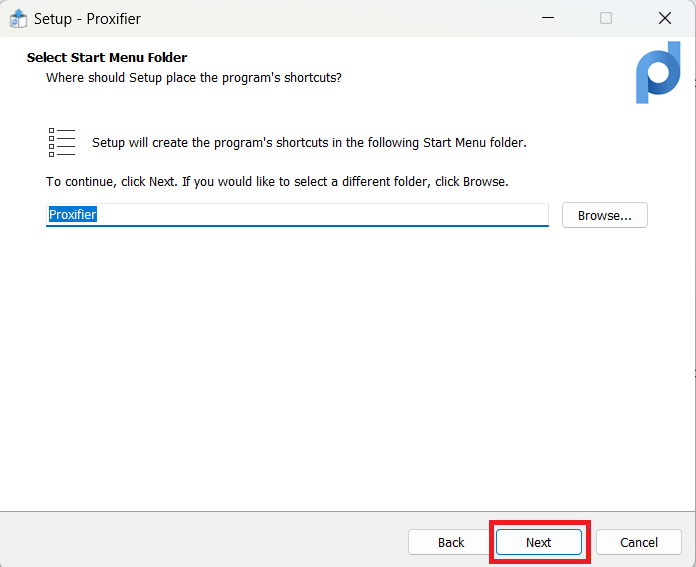
2. Follow the installation prompts to successfully install Proxifier on your PC. It’s a straightforward process, similar to installing any other software.
Step 2: Obtain Proxy Details
Before you can configure Proxifier, you need to have the details of the proxy server that you’ll be using. This typically includes:
- Proxy server address
- Port number
- Authentication credentials (username and password, if required)
Step 3: Configure Proxifier
1. Open Proxifier by double-clicking its icon on your desktop or from the Start menu.
2. Go to “Profile” in the top menu, and select “Proxy Servers.”
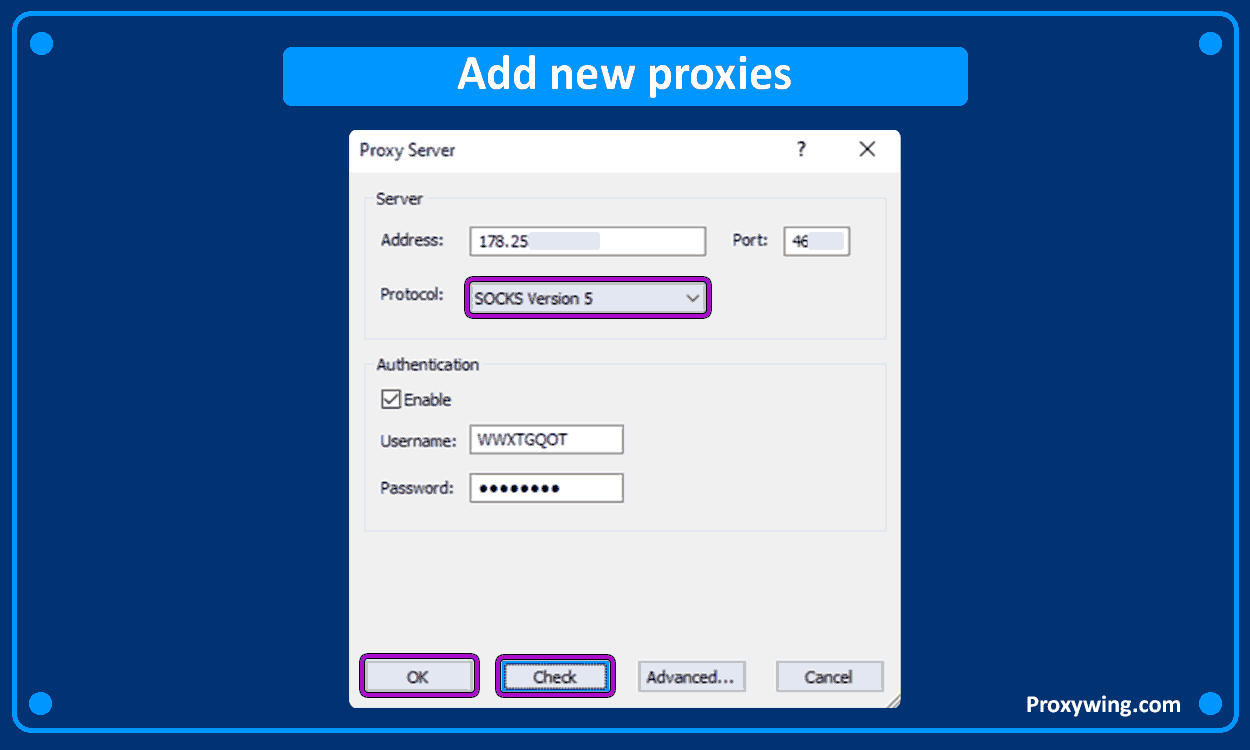
3. Click “Add” to input your proxy server details:
- Enter the proxy server address.
- Enter the port number.
- Select the appropriate protocol (SOCKS or HTTP).
- If your proxy requires authentication, check the “Authentication” box and provide your credentials.
4. After you’ve filled out the necessary information, click “OK” to save the settings.
Step 4: Configure Rules for Your Emulator
Proxifier allows you to create rules for specific applications to utilize the configured proxy settings. To set this up for your emulator:
- In Proxifier, go to “Profile,” then select “Proxification Rules.”
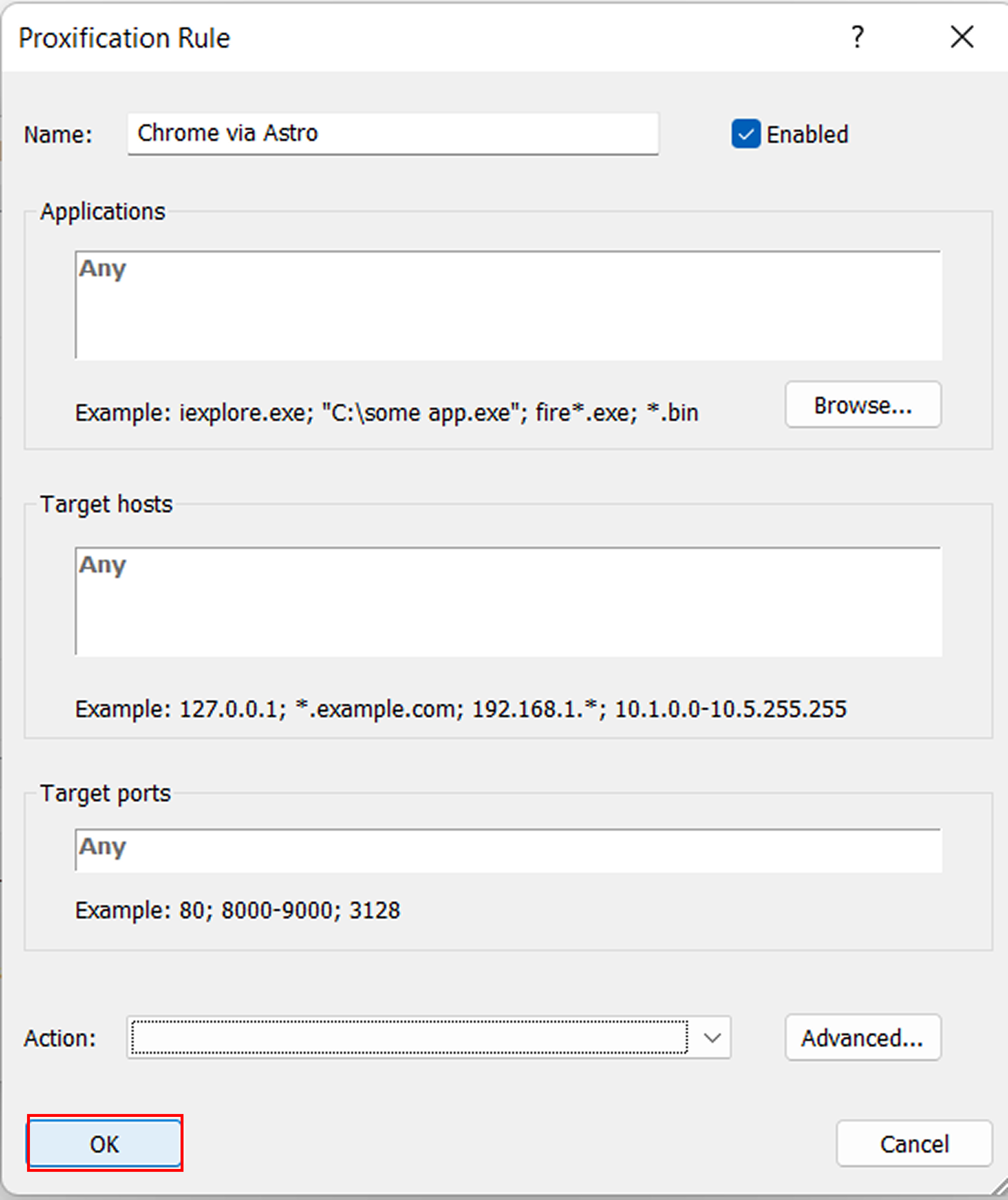
- Click “Add” to create a new rule. A window will appear, allowing you to specify which applications to route through the proxy.
- Enter the path of your emulator executable or use “Browse” to locate it. Assign the rule to the proxy you configured in the previous steps.
- Save your changes.
Step 5: Test Your Configuration
Before fully launching your emulator, it’s good practice to test if Proxifier is functioning as expected. You can check your IP address using online tools to confirm you’re routing through the proxy server.
Troubleshooting Common Issues
If you encounter issues while setting up Proxifier with your emulator, consider these troubleshooting tips:
- Ensure that your proxy server details are correct—double-check the IP address and port.
- Verify that your firewall or antivirus isn’t blocking Proxifier or the emulator.
- Test your proxy connection using other applications to ensure the proxy is operational.
Conclusion
Setting up Proxifier for use with emulators is a straightforward process that can significantly enhance your testing environment. By following the steps outlined in this guide, you can efficiently manage your network traffic, simulate different conditions, and improve your application’s performance in varied scenarios. Whether you are developing, testing, or simply browsing, Proxifier provides the flexibility and control you need to succeed.
For more detailed instructions and additional tips, you can check out the complete guide Proxifier Setup: Proxy for Emulator and PC — Rules and Verification https://crazyfb.shop/en/page/proxifier-nastroyka-proksi-dlya-emulyatora-i-pk-pravila-i-proverka.